

On your computer
Once you installed the extension, and are logged to your account on our website, you can click on a form field to see the IronVest popup to autofill your information:
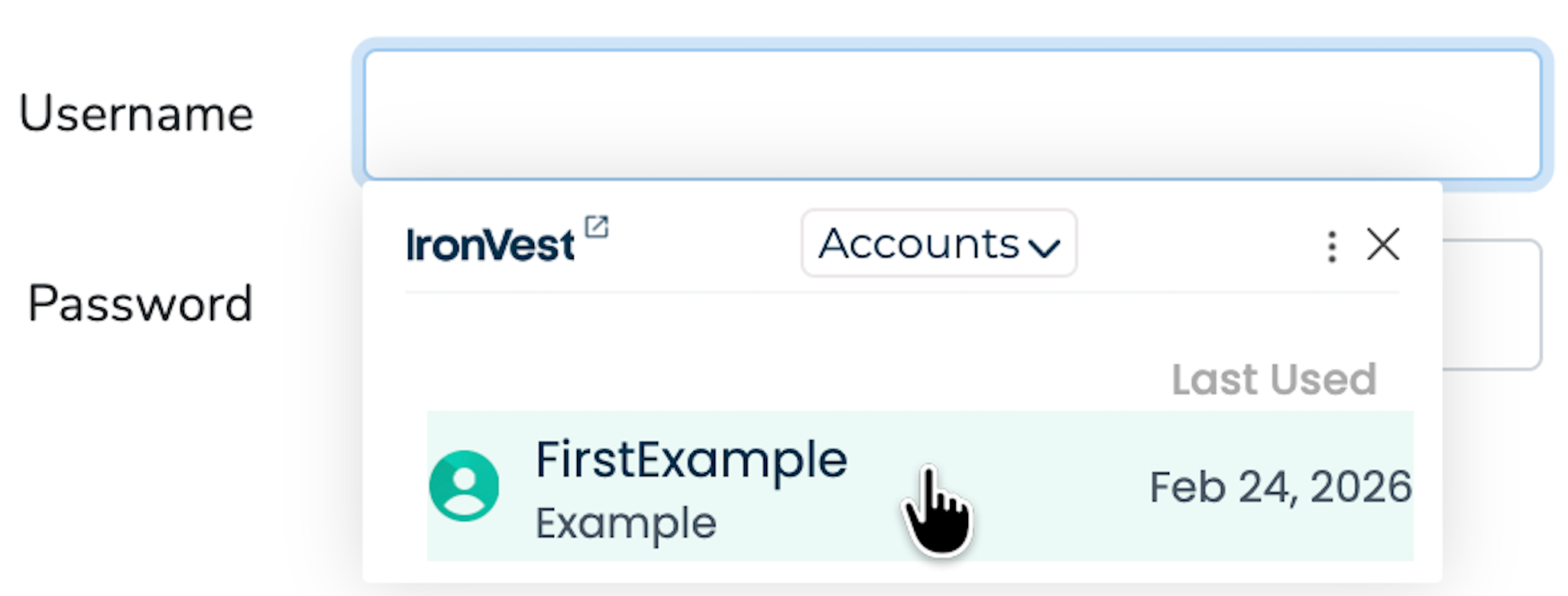
For Accounts Autofill
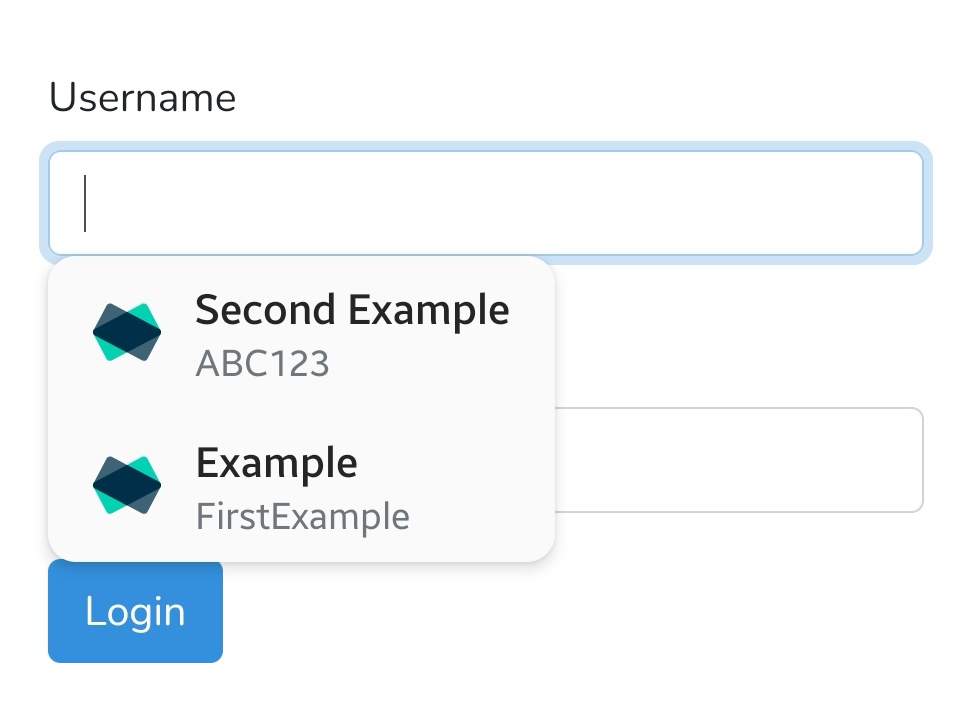
Click the email, username or password field to see the IronVest popup, and select the account.
For Card Autofill
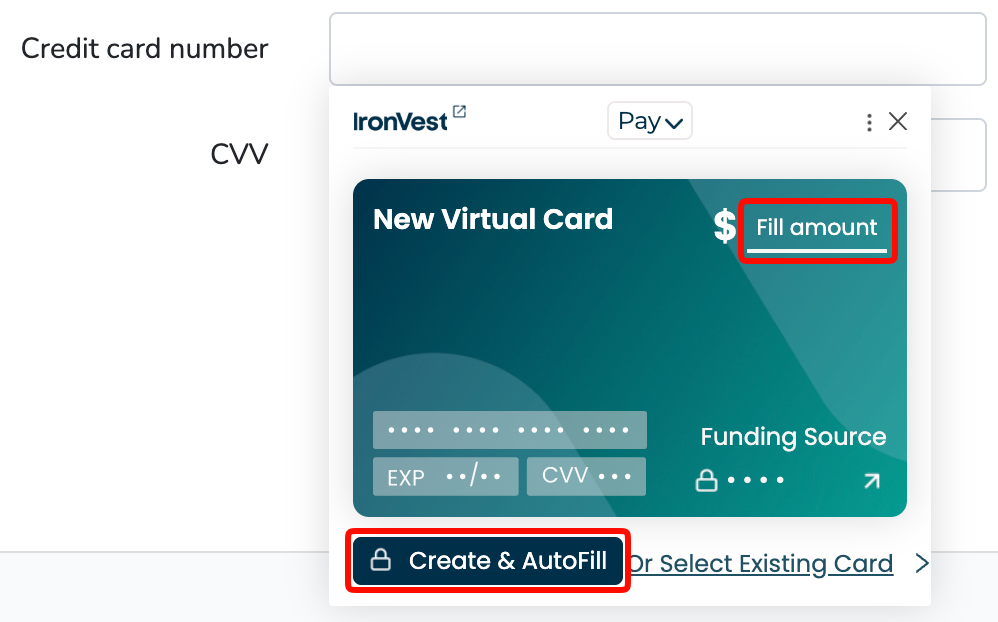
Click the Credit Card number field to see the IronVest popup. With IronVest, you can either create a Virtual Card to shop safely online or autofill any of your real stored cards within your account:
To create and autofill a Virtual Card, enter the amount you want to fund in the 'Fill amount' field, then click 'Create & Autofill'. For more details on virtual cards creating see Set Up Masked Cards and Creating a Masked Card.
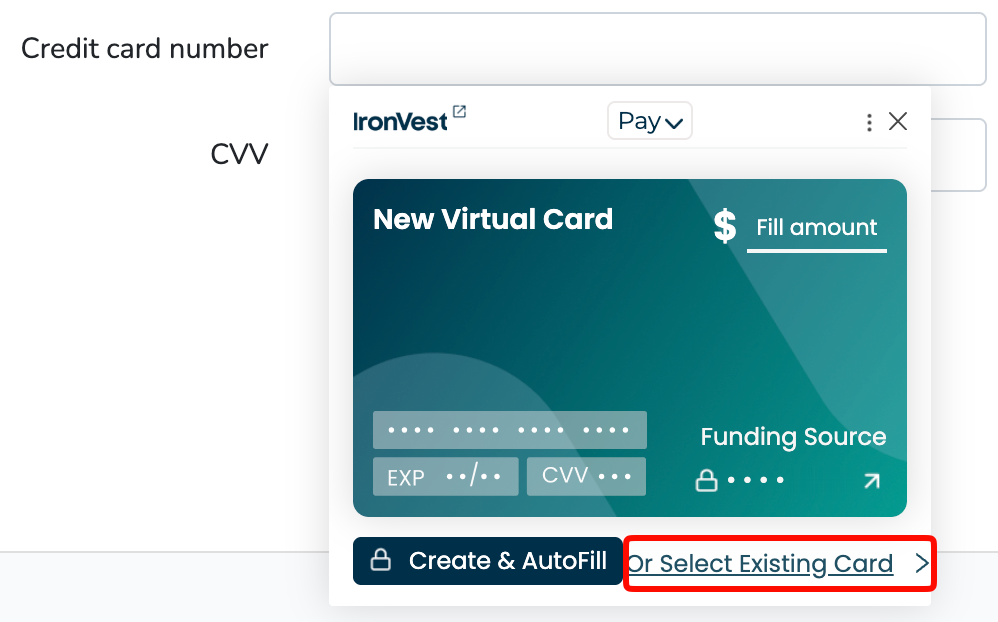
To autofill your real cards stored in IronVest, click 'Or Select Existing Card' and click on the card you wish autofill on the payment form.
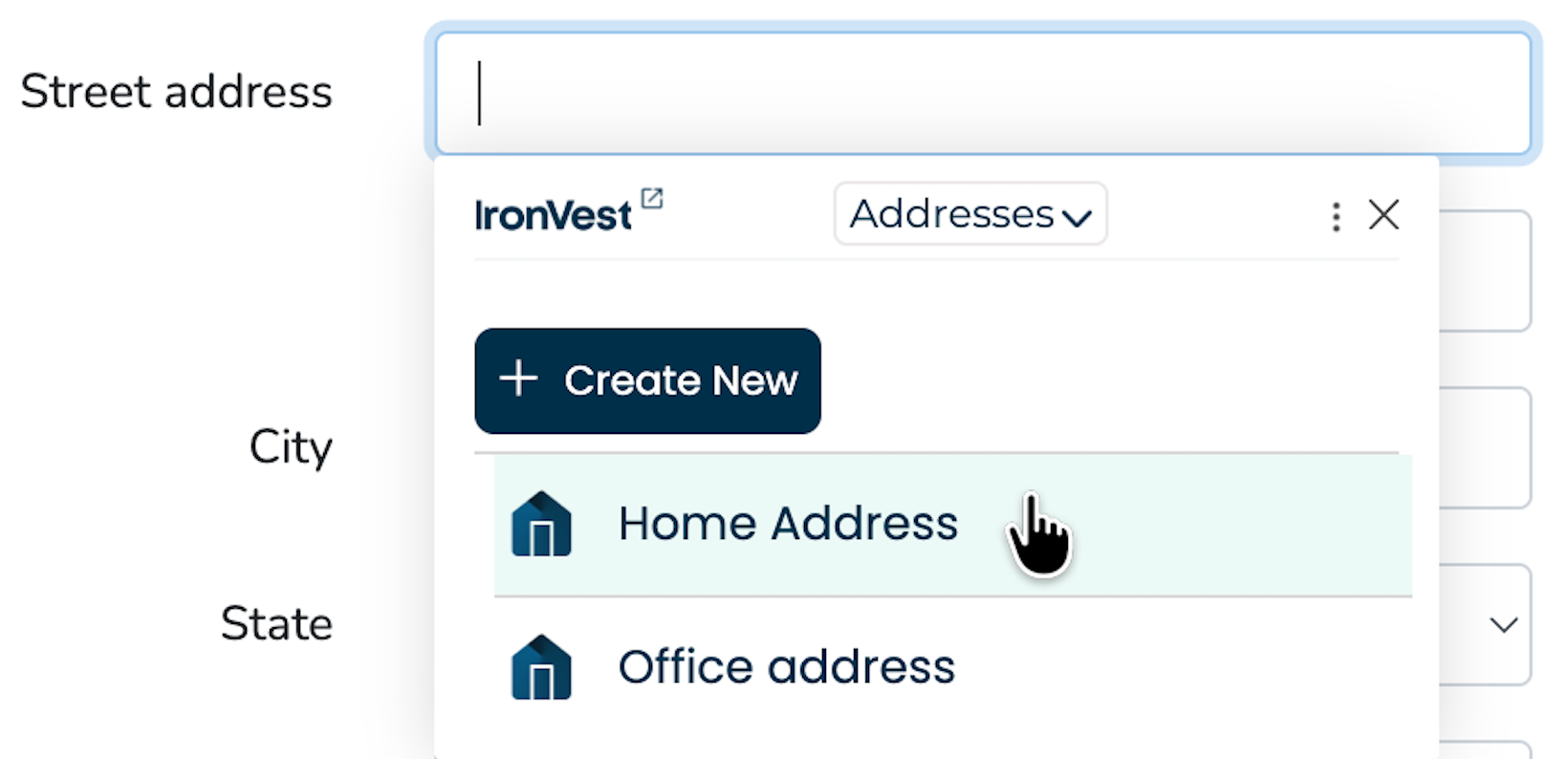
For Addresses
Click the Street Address field and choose the Address you'd like to fill.
📌 Note: If you ever see the wrong option appear when autofilling, refer to this article to learn how to adjust field detection: How do I stop IronVest from filling erroneous form fields?
On the mobile app
Make sure the app is logged in to your account and autofill has been enabled.
Android:
Open Firefox
Go to the website
Tap on the Email or Password field
Choose the account you'd like to fill from the list
iOS:
Open Safari or an app for which you have an account
If using Safari or another browser, go to a website for which you have an account saved in IronVest
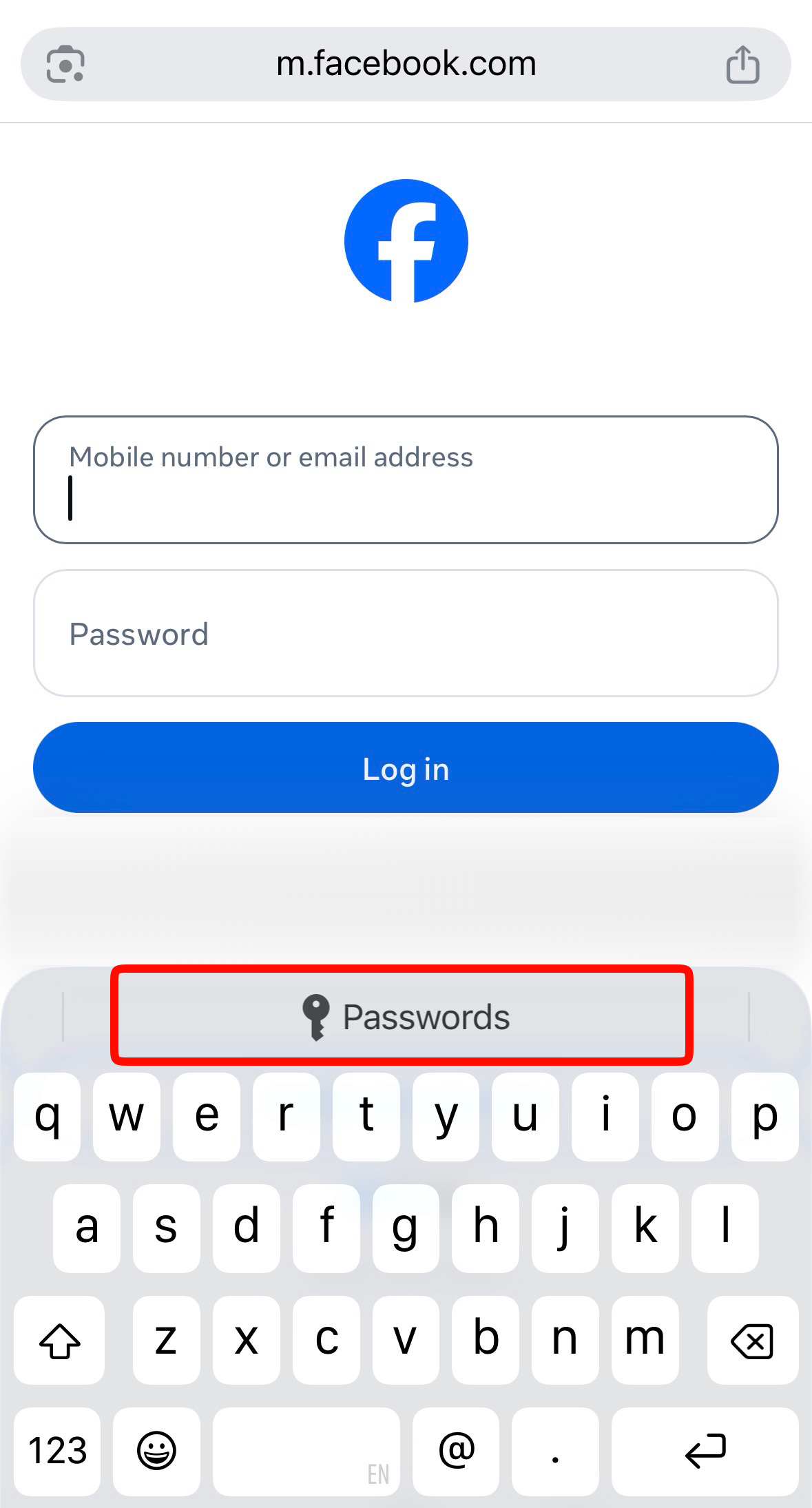
Tap in the username or password field
Tap the Passwords prompt on your iOS Keyboard
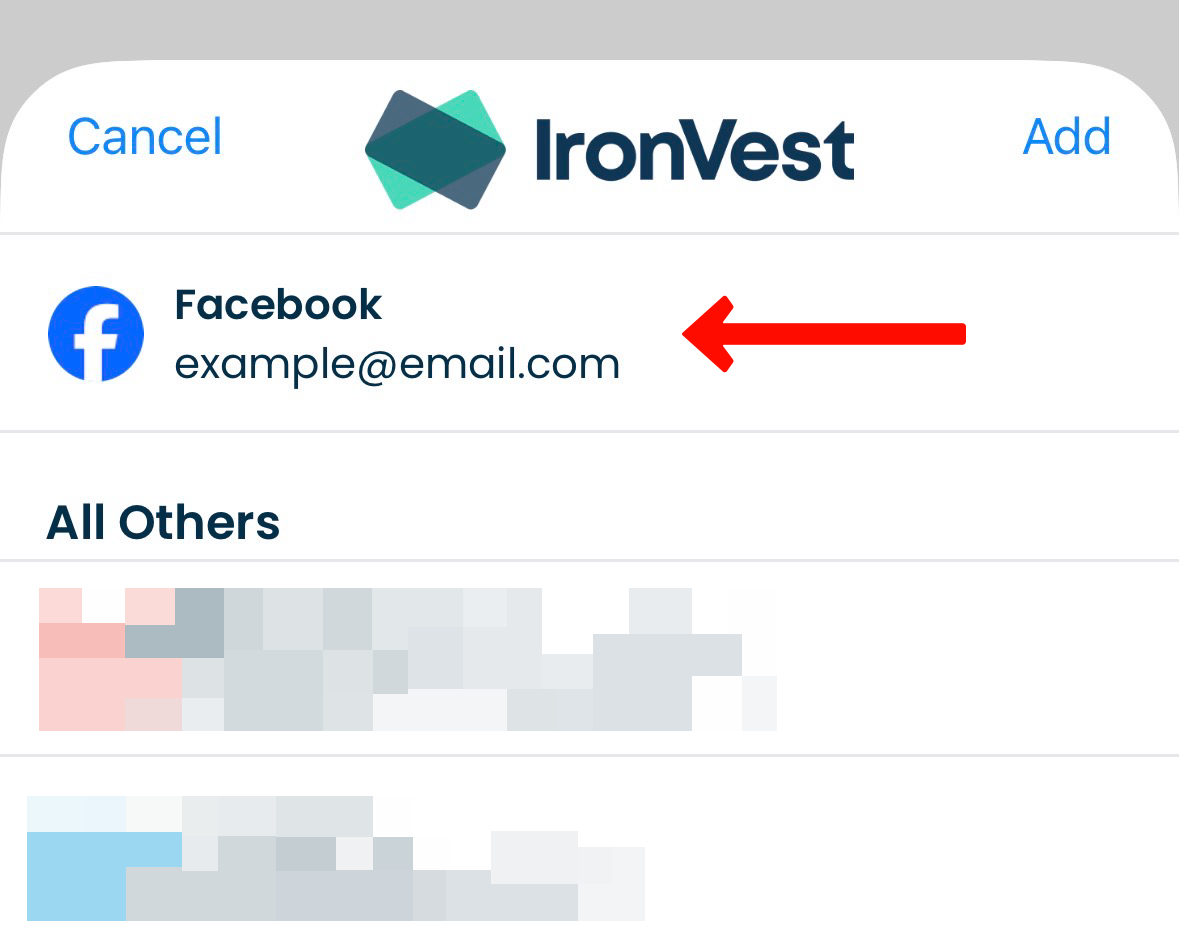
Select IronVest and authenticate with Touch ID or Face ID
Tap the account for the site or app.
📌 Note: At this time, you can only autofill Accounts using the mobile app.