

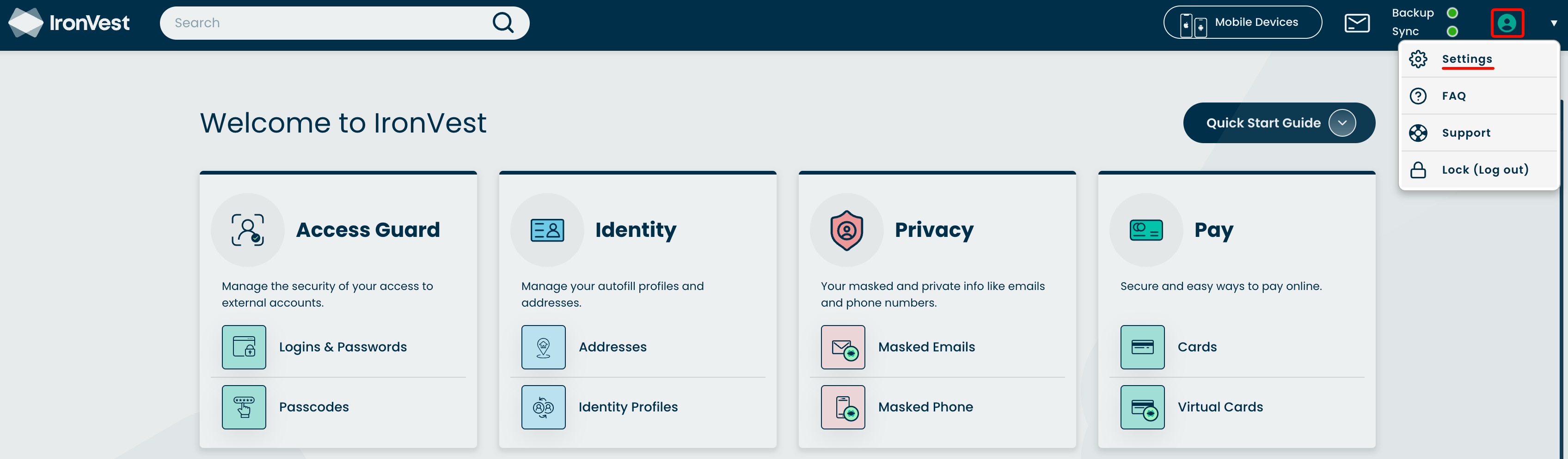
1) Go to the IronVest Dashboard, click on the Account icon and select 'Settings'
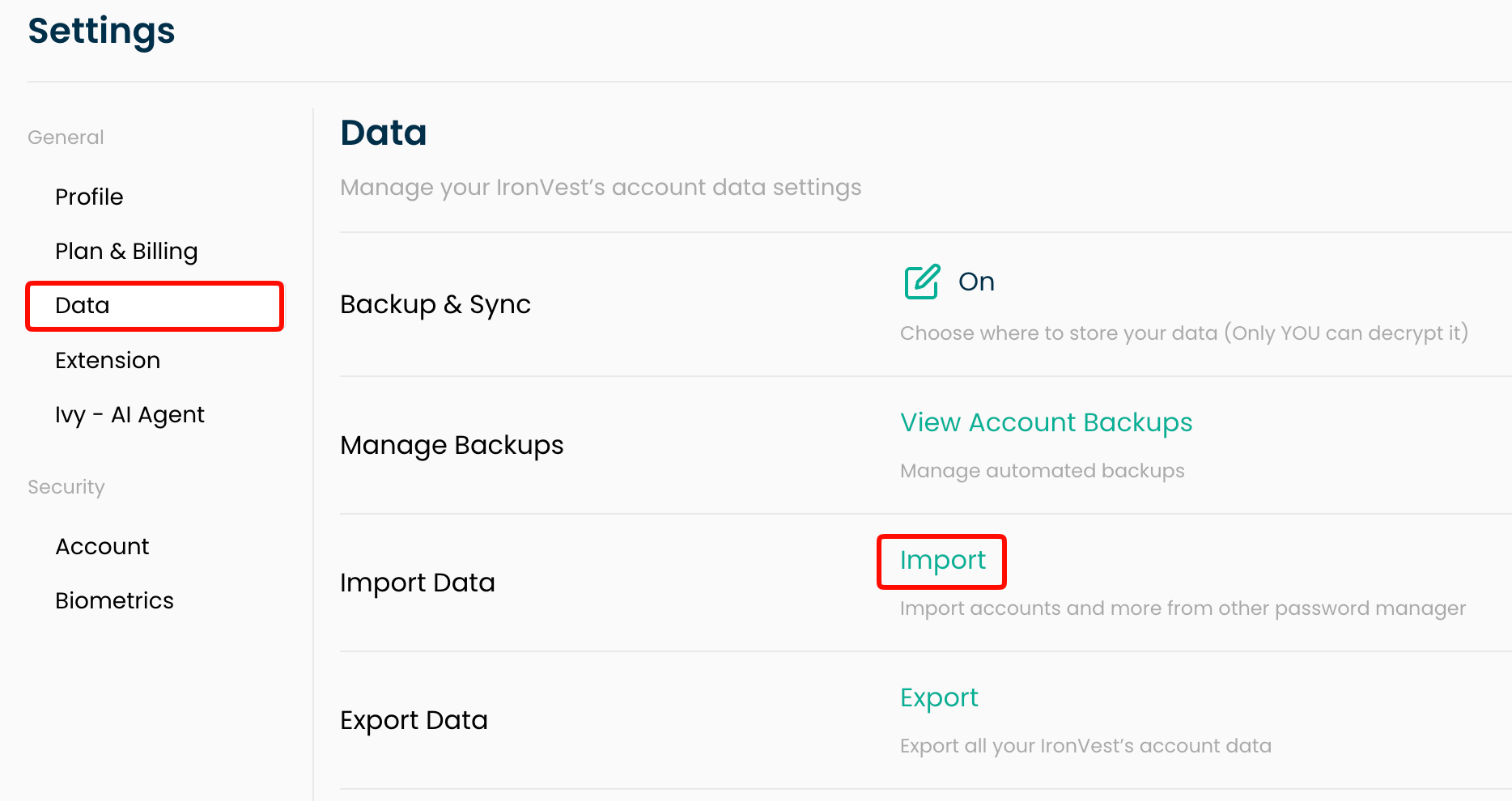
2) Select the 'Data' tab, and then click 'Import' next to Import Data
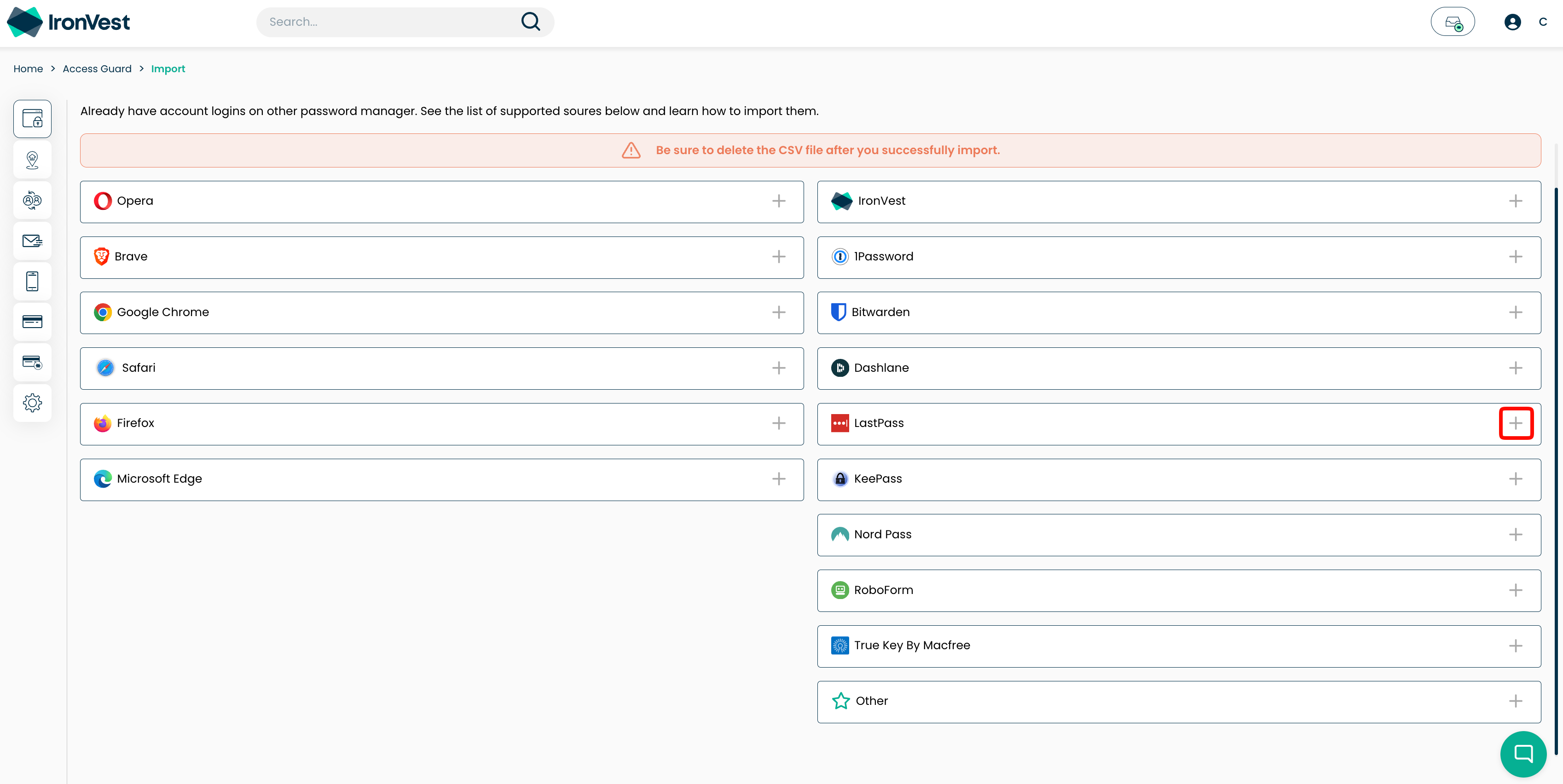
3) Select the product you would like to import from or select 'Other'
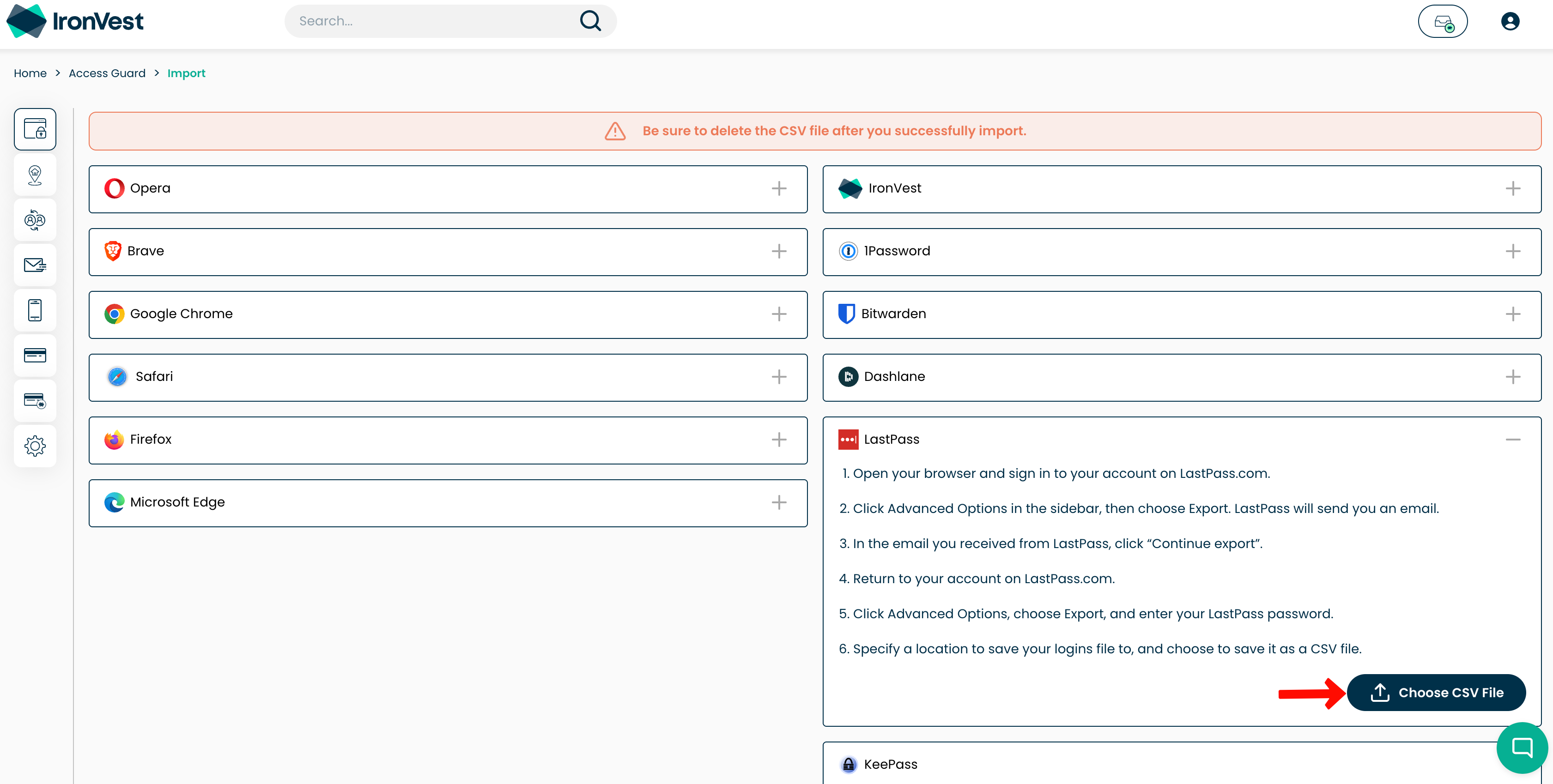
4) Click Choose CSV File
5) Find the exported file from your previous password manager and click 'Open'
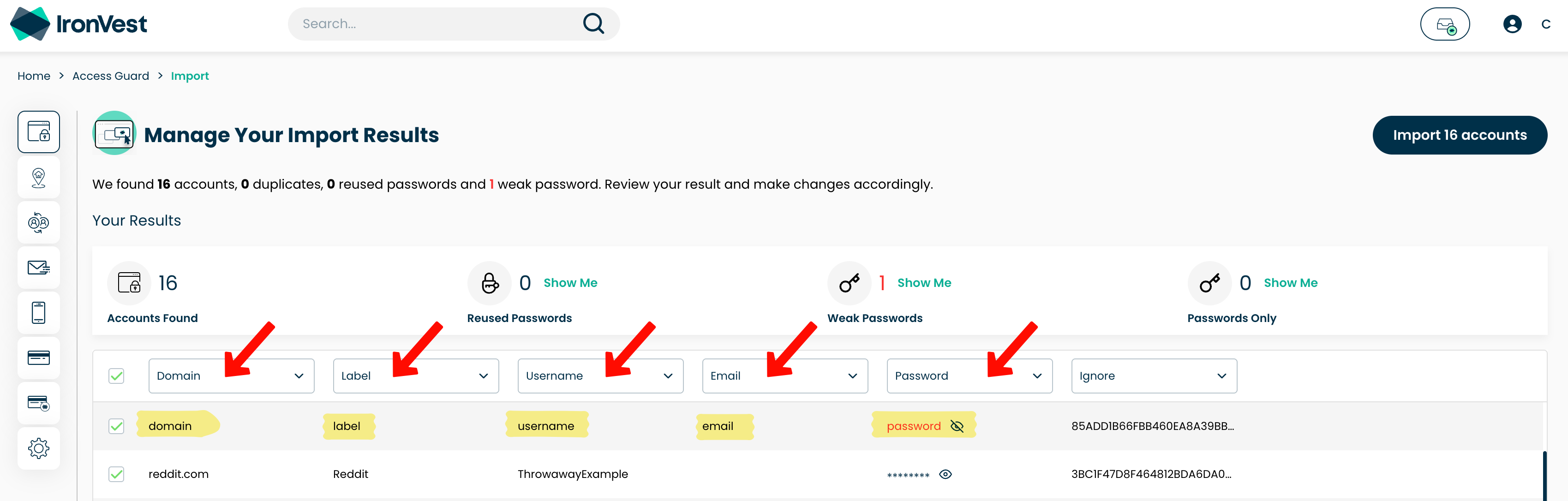
6) IMPORTANT: Ensure that each column in your imported file matches the correct field in IronVest. Use the dropdown menus at the top of each column to select the appropriate field before importing.
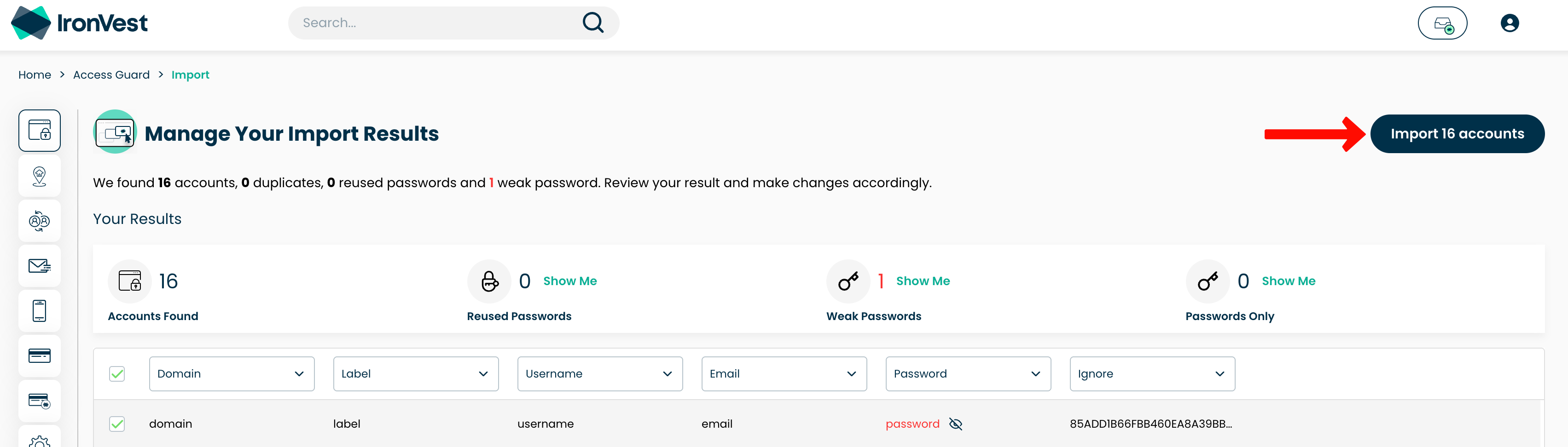
7) Click the Import button on the top right.
If you're experiencing any issues or have questions, please contact support at support@ironvest.com.