

On the website
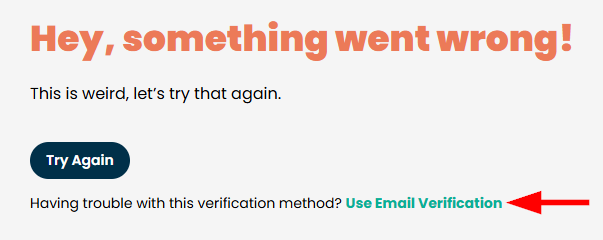
If it fails when logging in to the IronVest website click "Use Email Verification".
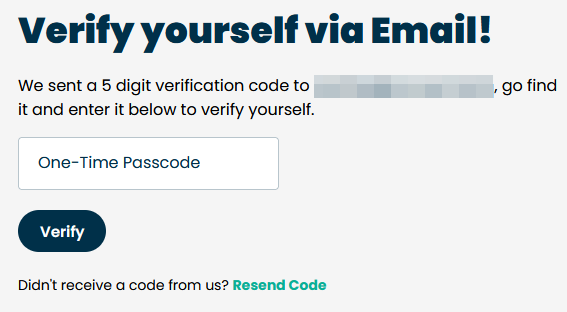
You will then receive a code to your email to enter it on the "One-Time Passcode" text box and click "Verify",
On the mobile app
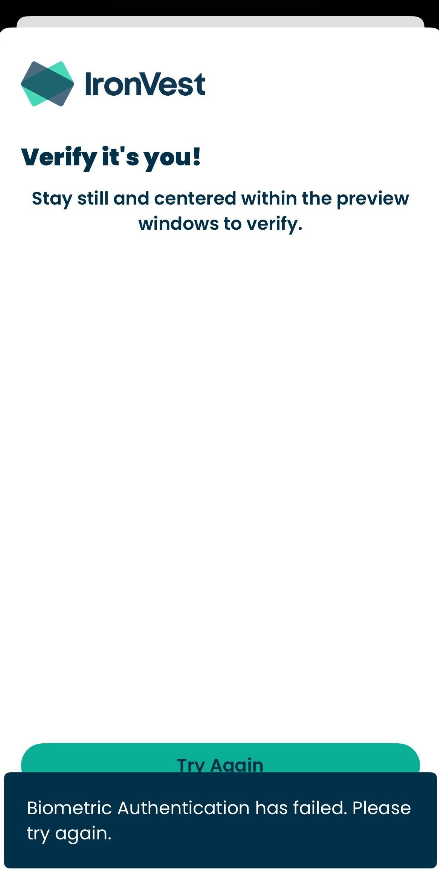
When it fails on the app, you will probably see an error message at the bottom like this:
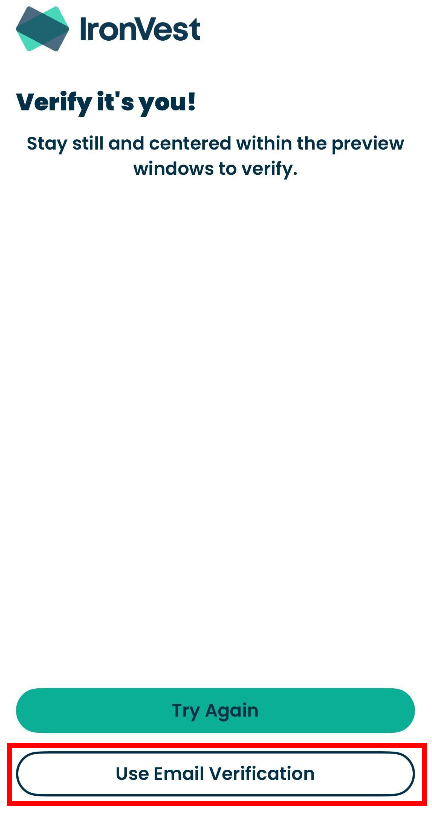
Once it goes away, you will see the option to use email verification:
On the extension pop-up
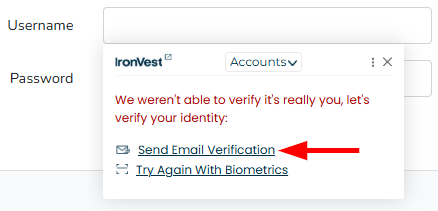
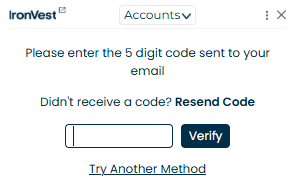
When autofilling using the browser extension, select "Send Email Verification", enter code received in your email on text box, and click "Verify".
On the extension mini-dashboard
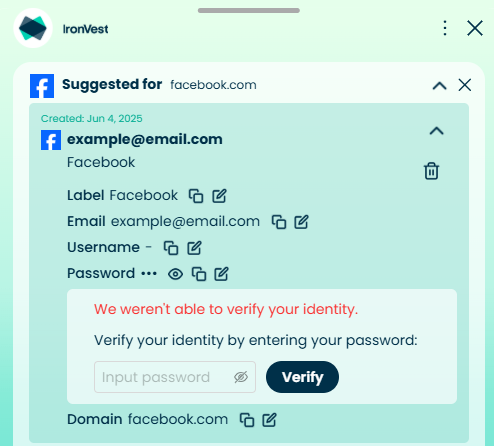
Should it fail when trying to view or copy sensitive information from the mini-dashboard, it will prompt you to enter your password to verify.
📌 Note: Biometric Protection is an optional feature. If you would like to disable Biometrics, refer to this article: How to disable Biometric Protection?
If you run into any issues with Biometrics or have any questions, don't hesitate to reach out to our support team at support@ironvest.com for assistance.