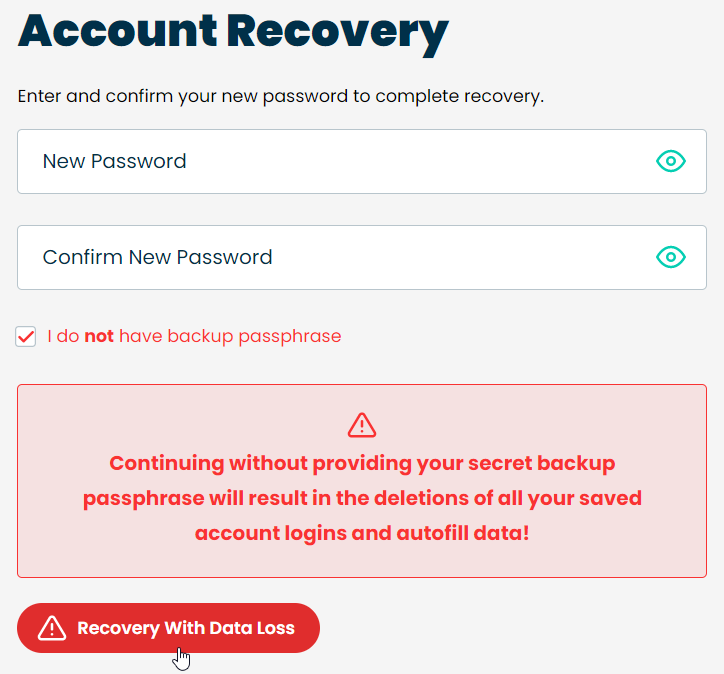

If you've forgotten your password and you DO NOT have Accounts or Passwords stored in IronVest, you can reset your password using this link.
Clicking that link will take you to a page that asks for your email address. You must then enter the email address that you used to create your account.
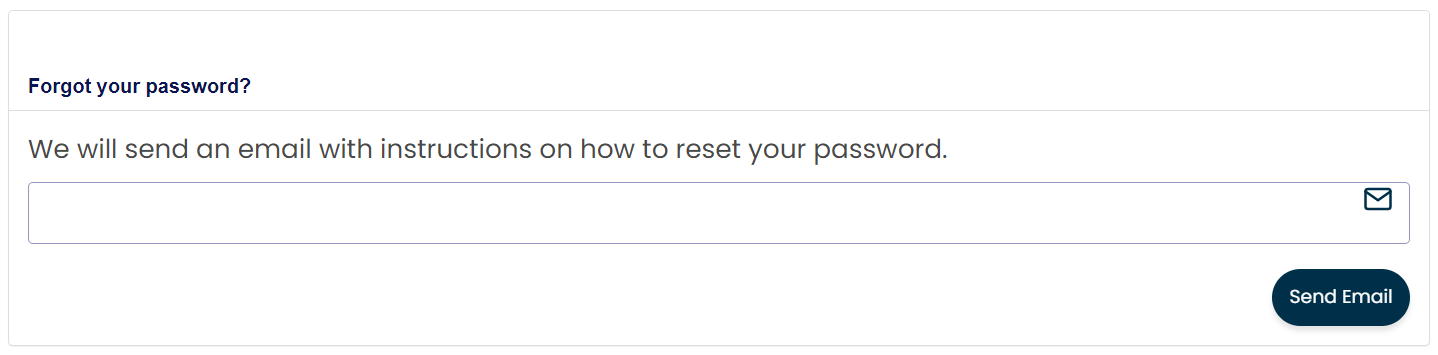
You'll then receive an email from IronVest, and the subject line of this email will read: "Reset your IronVest password.". Make sure to click the "Reset Password" button that is included in the body of this email message.
Once you click the "Reset Password" button in that email, you'll then be directed to a page that is asking you for a new Password.
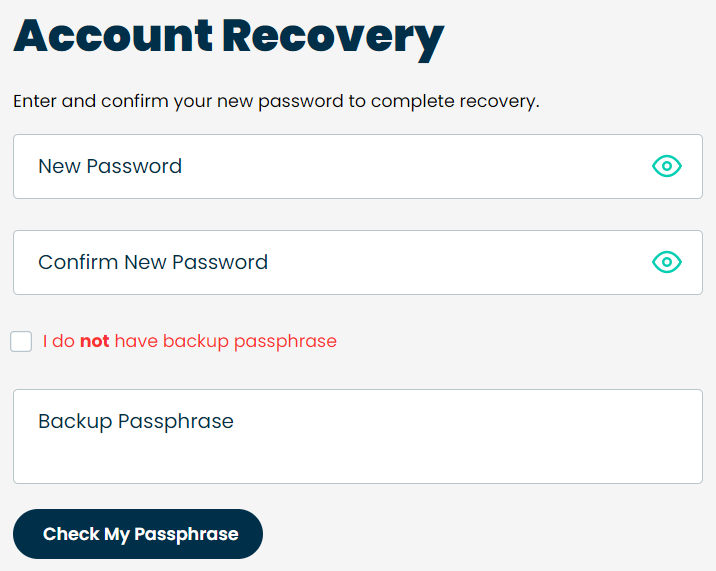
Because you DO NOT use IronVest to store your Accounts and Passwords, you DO NOT need to enter your Backup Passphrase on this page.
Resetting your password without your Backup Passphrase will erase any stored Accounts and Passwords in IronVest.
Resetting your password without your Backup Passphrase will NOT erase any Masked Email Addresses, Masked Phone Numbers, or Masked Cards that are stored in IronVest.
Please be sure to acknowledge the check box on this page, and notice that the "Check My Passphrase" button changes to "Recovery with Data Loss" when resetting your account without your Backup Passphrase.