
If a website is rejecting one of our default Masked Emails, you can create a Custom Masked Email for that website.
From the website:
Go to the Emails section on your Dashboard or click here.
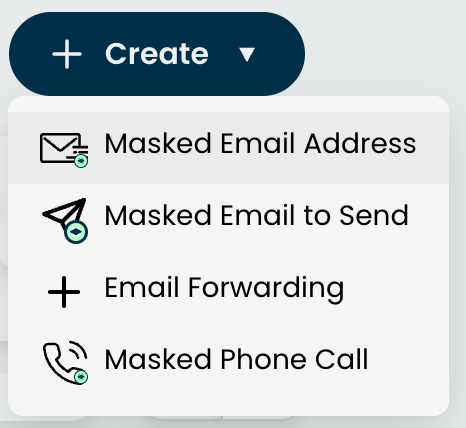
Click on the '+ Create' button and select 'Masked Email Address'
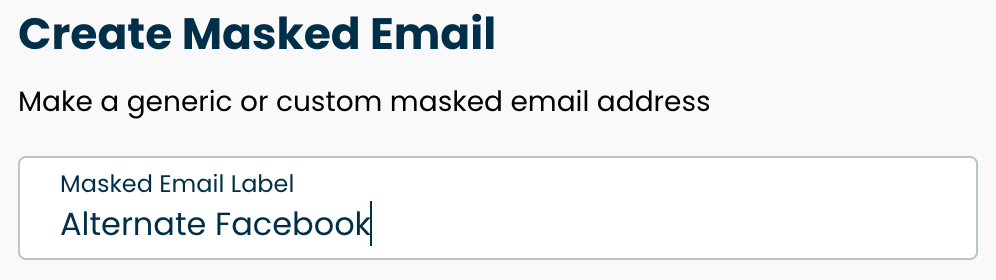
On the Masked Email Label field, add an identifier to remember where the Masked Email is used. For example, the website where you will use it.
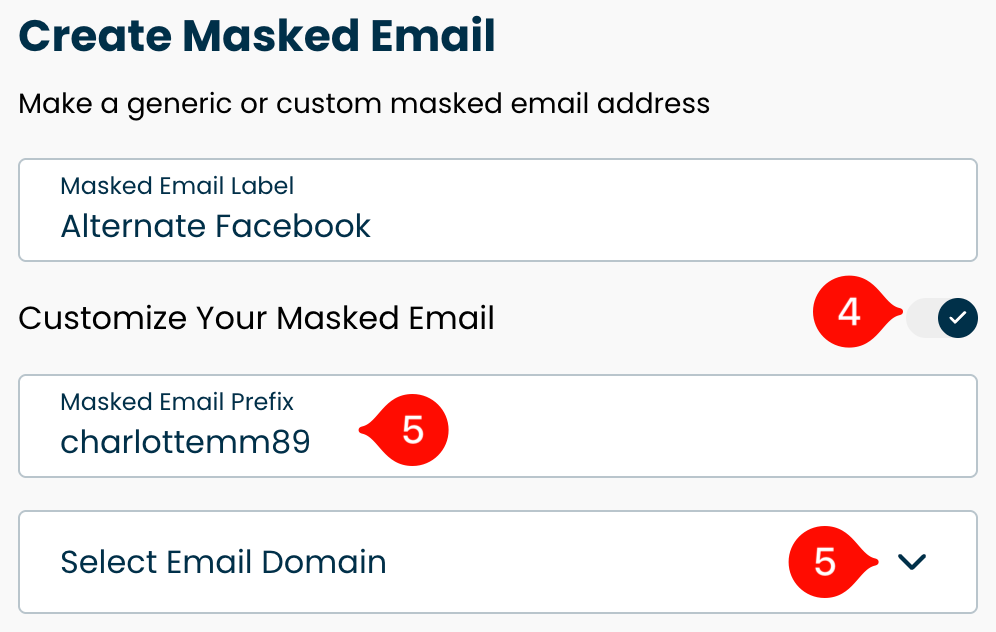
Toggle on "Customize your Masked Email"
Enter the prefix and choose the domain you'd like to use by clicking "Select Email Domain".
Enable forwarding if you'd like it to forward to your real email address. If you have an additional forwarding address already associated to your account, you can choose it on the dropdown menu.
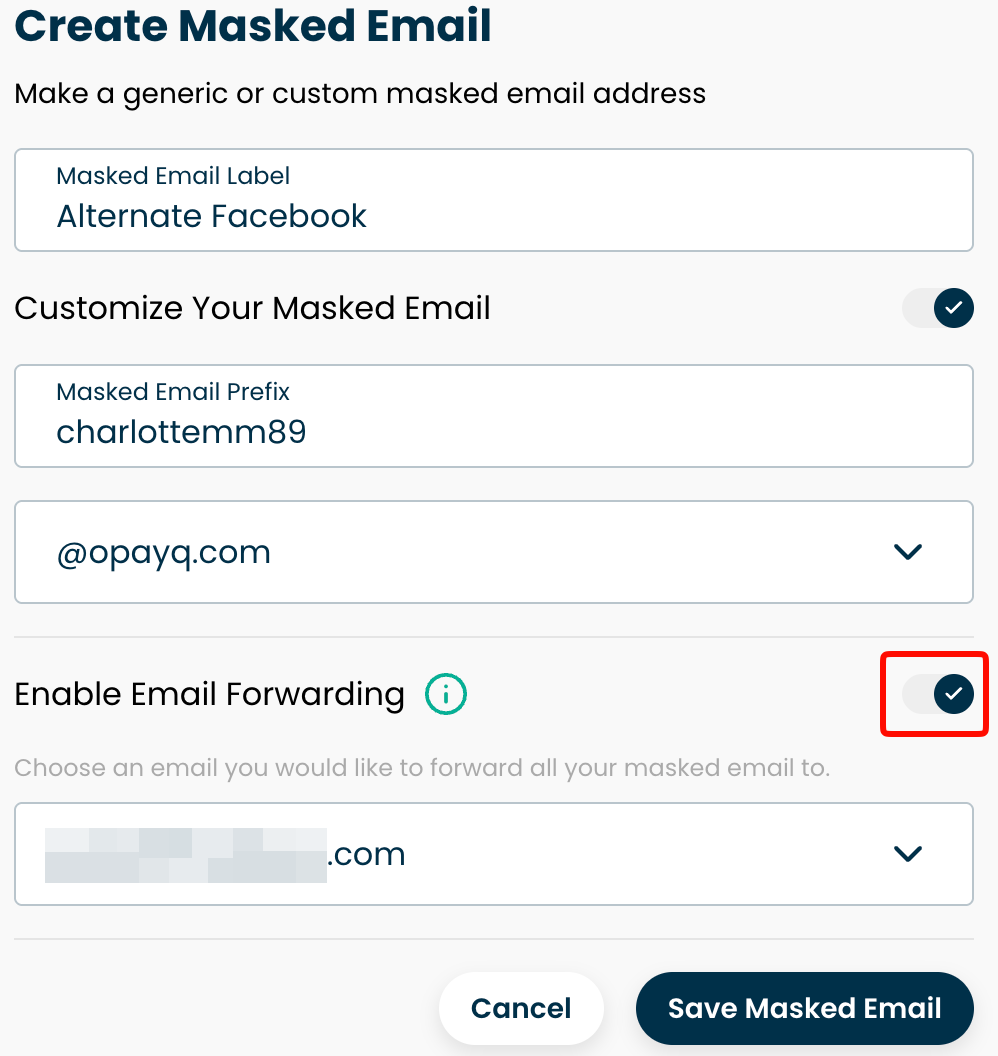
Click "Save Masked Email".
From the Chrome extension:
1. Go to the site you want to create the Masked Email for.
2. On the sign-up page, click the email box.
3. Click "Create Custom".
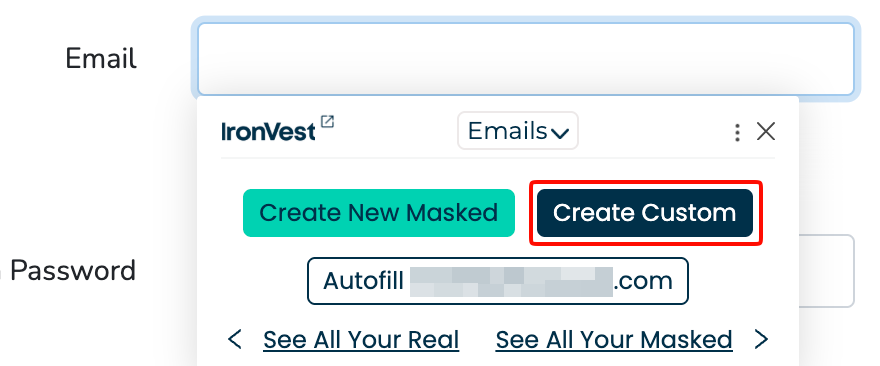
4. Enter the email prefix and choose the domain you'd like to use.
5. Click "Create".
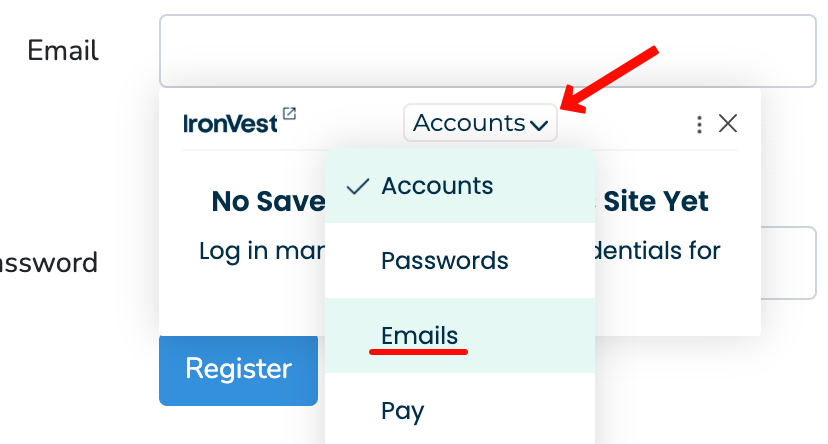
ℹ️ Note: If the correct panel to create a Masked Email doesn’t appear initially, click the dropdown menu at the top and select 'Emails'.
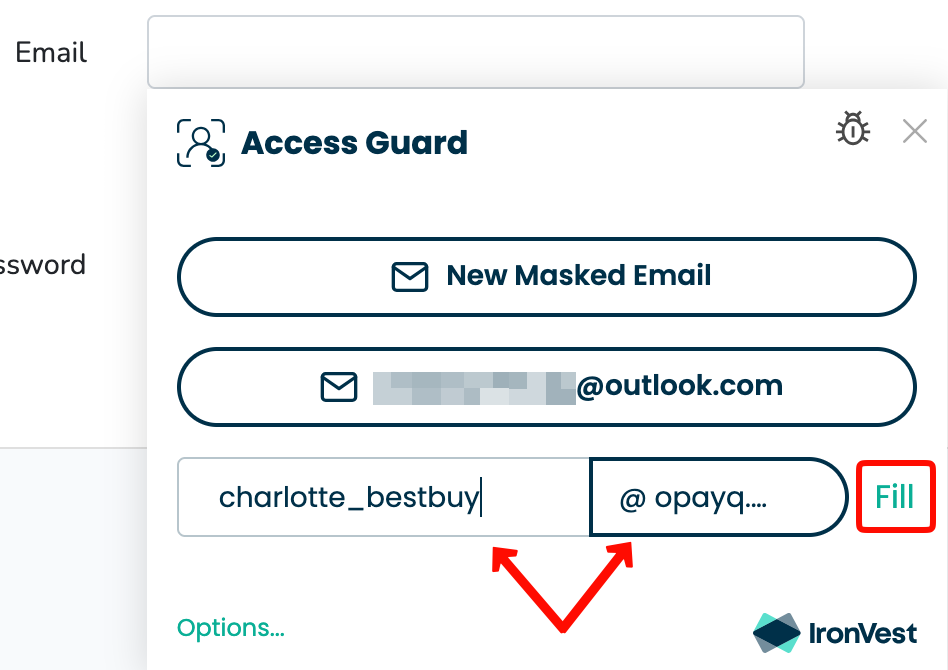
From Firefox and older versions of the extension:
Go to the site you want to create the Masked Email for.
On the sign-up page, click the email box.
Click on 'Your custom email', and select the domain to choose a different one
Click 'fill'
From the mobile app:
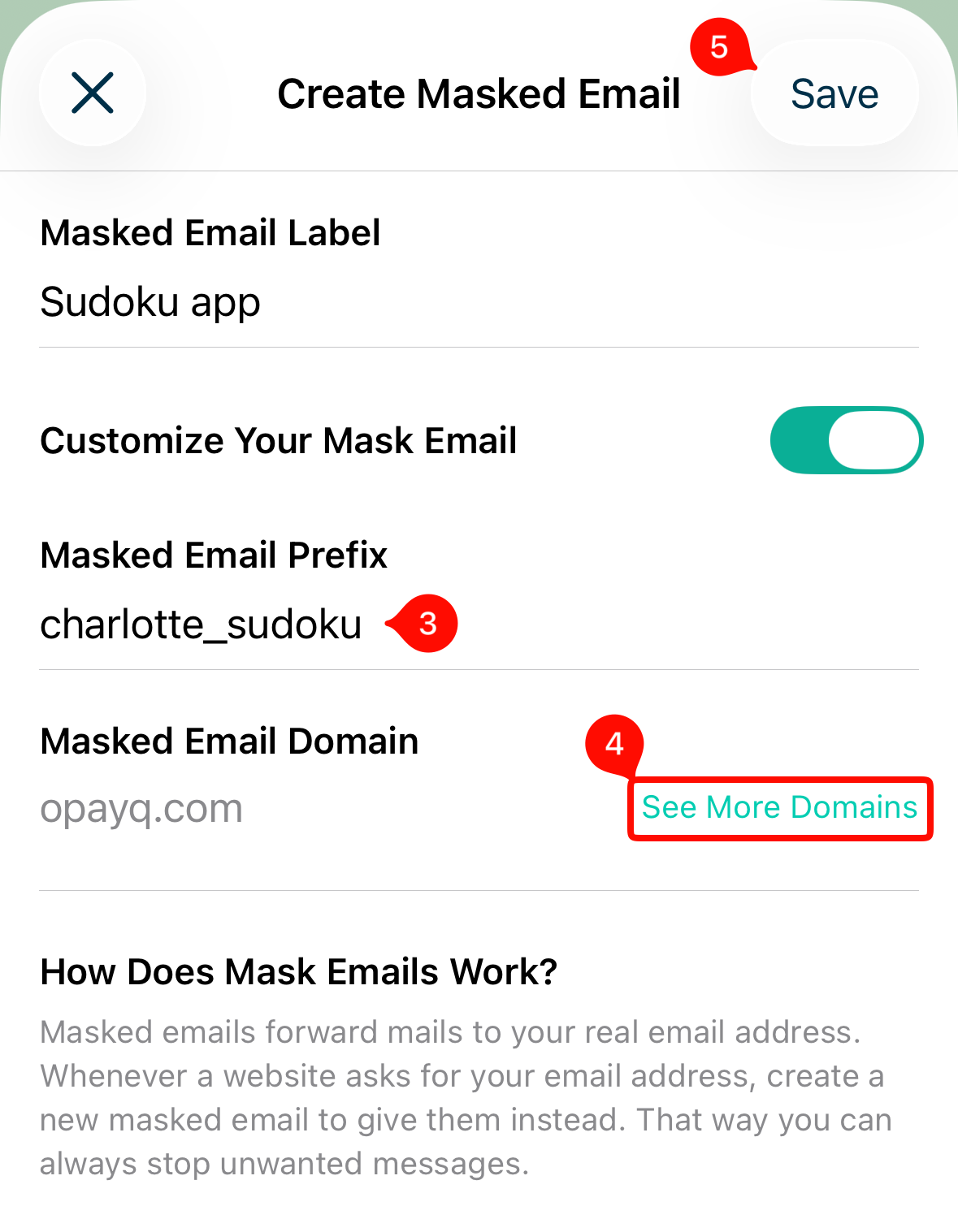
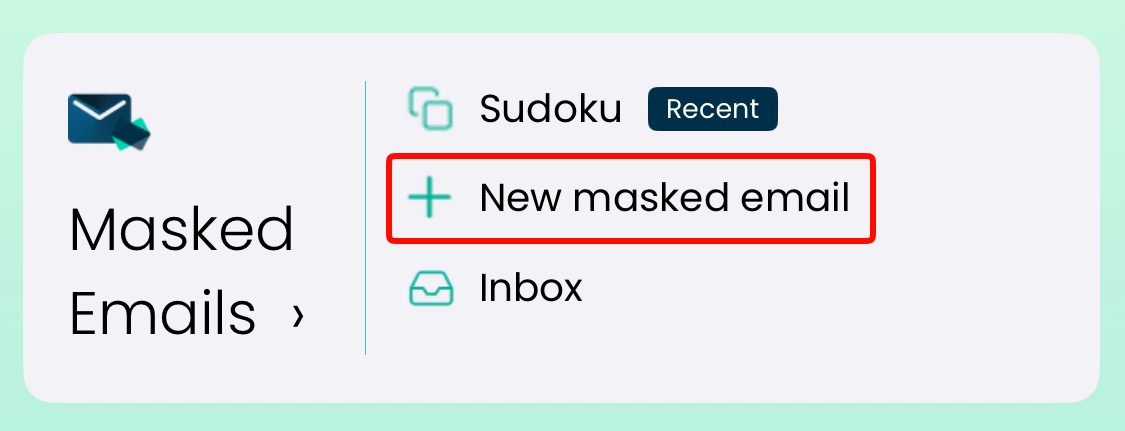
While on the Dashboard, tap "+ New masked email".
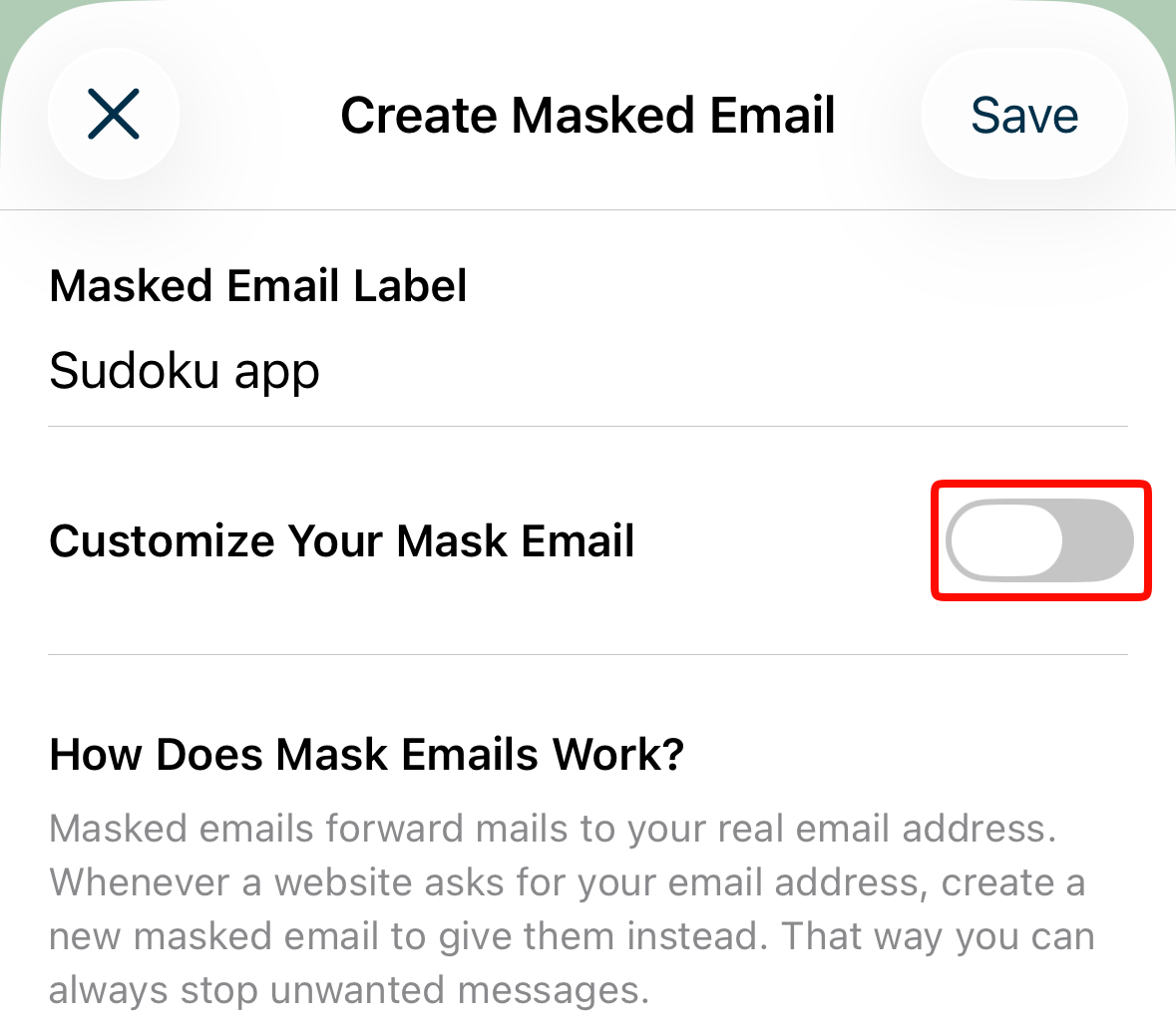
Enter the website you'd like to use the Masked Email for, or anything to identify it on the "Masked Email Label" field.
Tap the toggle next to 'Customize Your Mask Email'.
4. Enter the prefix and choose the Domain by tapping 'See More Domains'.
5. Tap 'Save'.