

The latest IronVest extension delivers updates designed to improve control and usability. Here’s what’s new, where to find it, and how to use it:
New “Report an Issue” Feature
What:
We’ve revamped the issue reporting process to help you submit reports more quickly and effectively.Where:
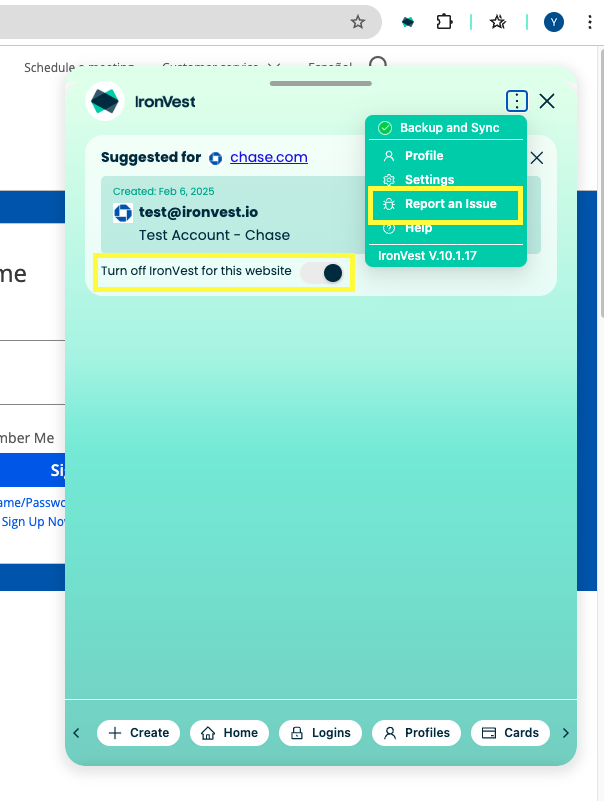
The “Report an Issue” button is accessible from the three-dots menu in the Mini Dashboard and the three-dots menu of any panel.How:
Click “Report Issue”, write a description of the problem (optional), and hit “Send Report.” Even if you don’t type anything, the system will gather relevant details automatically and submit the report for you.Disable IronVest for Specific Websites
What:
You can now turn off IronVest entirely for specific websites. This disables all panels, auto-save, and autofill functionality on the selected site.Where:
In the Mini Dashboard, under the “Suggested for this website” section, you’ll find a toggle labeled “Turn off IronVest for this website.”How:
Flip the toggle to disable IronVest for the site. A confirmation message will appear:
“IronVest has been disabled for this website. You can return here anytime to turn it back on.”
To re-enable IronVest, simply toggle it back on. Your preferences will persist across sessions and devices.
Global Settings for Extension Features
What:
You now have full control over which IronVest features are enabled globally for all websites.Where:
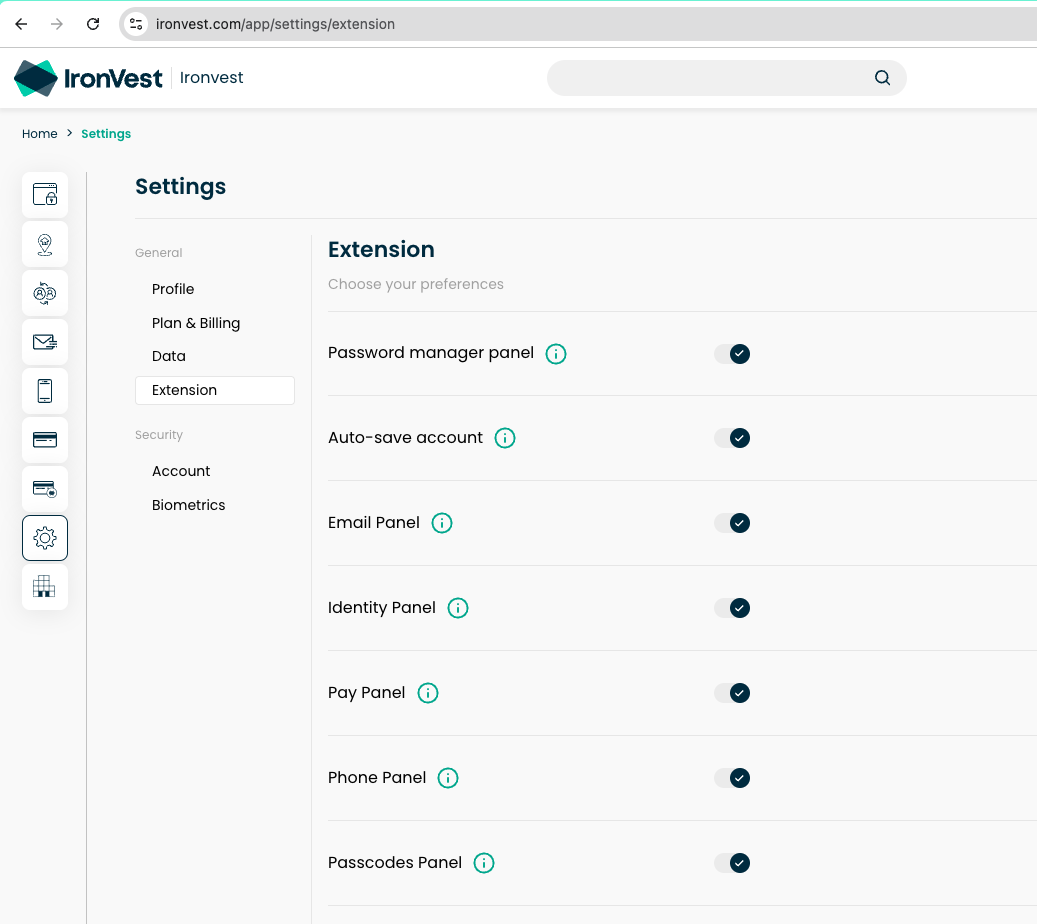
In the Web App, go to Settings > Extension to manage these settings.How:
Use the toggles in the Extension section to enable or disable specific features like Email Panels, Pay Panels, and Passcode Panels. These settings will apply to all websites globally.
Improved Functionality on Chase.com
What:
The extension now works on Chase.com, allowing users to autofill credentials and log in more easily.Where:
This applies automatically when you visit Chase.com.How:
When visiting Chase.com, you may need to click twice to initiate the panels. This ensures compatibility with Chase’s platform while providing the same secure and reliable autofill experience you expect from IronVest. Simply click the panel button, and IronVest will handle the rest.
Rollout Information
This update will roll out automatically to all users gradually. No action is required on your part—just keep using IronVest, and you’ll see the new features as they become available.